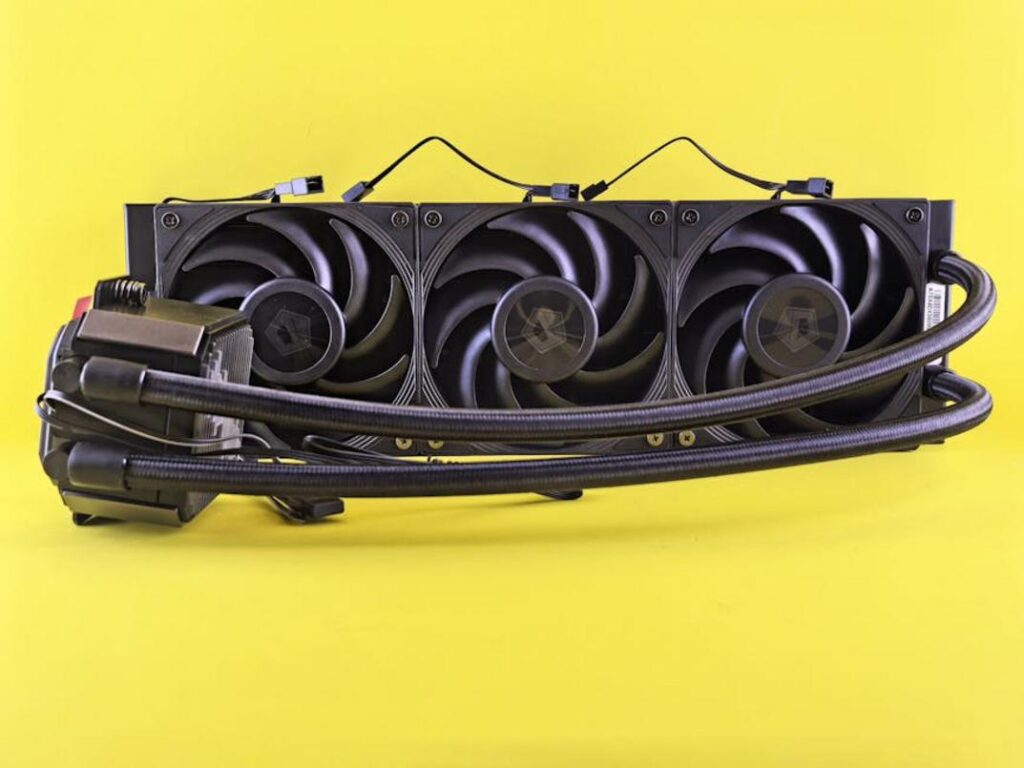
If your gaming PC is running hotter than it should, throttling performance, or sounding like a jet engine mid-match, you’re likely searching for practical ways to fix it. This guide is built specifically to help you understand and implement gaming pc airflow improvement strategies that actually work. We break down core airflow principles, fan placement optimization, case pressure balance, and cooling configuration tweaks that directly impact frame rates, system stability, and hardware longevity.
Instead of generic advice, this article draws on real-world performance comparisons, thermal testing insights, and hardware optimization best practices used by serious gamers and PC builders. You’ll learn how airflow direction, cable management, fan curves, and case design all interact to influence internal temperatures.
By the end, you’ll know exactly what changes will lower temps, reduce noise, and unlock more consistent gaming performance—without wasting money on unnecessary upgrades.
Your RTX 4090 shouldn’t stutter during a boss fight, yet frames dip when action spikes. The issue is thermal throttling—when components automatically slow down to prevent overheating. Modern GPUs and CPUs are engineered with boost clocks, but they only sustain them if temperatures stay low.
Here’s practical blueprint for gaming pc airflow improvement:
- Position intake fans at the front, exhaust at the rear/top for directed flow.
- Use high-static-pressure fans on radiators to push air efficiently.
- Manage cables to eliminate airflow blockages.
These features translate into tangible gains: steadier frame times, quieter operation, and longer component lifespan (yes, during Cyberpunk-style chaos).
The Golden Rules of PC Airflow: Intake, Exhaust, and Pressure
A PC case is just a box with components that generate heat. Without a clear path for cool air to enter and hot air to exit, temperatures climb and performance drops (thermal throttling is the silent frame-rate killer).
Intake fans pull cooler air in, usually from the front or bottom, feeding your GPU and CPU fresh oxygen. Exhaust fans push hot air out, typically through the rear or top, preventing heat buildup.
Air pressure defines balance. Positive pressure means more intake than exhaust, reducing dust because air escapes through gaps. Negative pressure flips that, sucking in dust from every crack. Aim for slightly positive pressure by installing an extra intake fan or lowering exhaust speed.
- Balanced airflow supports gaming pc airflow improvement by stabilizing clocks
- Filtered intakes cut cleaning time and extend component lifespan overall long term
Your Fan Configuration Blueprint for Maximum Cooling
If you want reliable performance, start with the gold standard: front fans as intake, rear fan as exhaust, and top fans as exhaust. This layout creates a clean, directional airflow path. Cool air enters from the front, moves straight across your GPU and CPU, then exits through the rear and top.
Think of it like a wind tunnel in a racing simulator. Air flows in one direction, hits the hottest components first, and gets expelled before it can linger. That’s the core idea behind effective gaming pc airflow improvement.
Why This Works
Step by step, here’s what happens:
- Front intake fans pull in cooler room air.
- That air passes directly over your GPU (usually the hottest part during gaming).
- It continues upward toward the CPU cooler.
- Rear and top fans immediately push the heated air out.
Heat naturally rises, so top exhaust fans work with physics, not against it. If you’ve ever felt your PC case getting warm at the top, you’ve experienced this firsthand.
Common Mistakes to Avoid
- Fans fighting each other (like rear intake plus top intake).
- Installing a fan backward (yes, it happens more than you think).
- Running multiple intakes but no exhaust (heat gets trapped).
Pro tip: Slight positive pressure (more intake than exhaust) helps reduce dust buildup.
Quick Tip
Not sure which way a fan blows? Look at the frame braces on the back. Air flows toward the side with the braces and motor hub supports.
Once airflow is optimized, pair it with smart software tweaks like these best windows settings for high performance gaming for maximum gains.
Cable management rarely gets the spotlight, but every builder has faced “cable spaghetti” at least once. A tangled nest of wires draped across the motherboard acts like a dam, blocking airflow and creating stubborn hot spots. “Why is my GPU throttling?” a friend asked me during a late-night build. I pointed to the wires sagging in front of his intake fans. “They’re basically a curtain,” I said.
For real gaming pc airflow improvement, start with a routing checklist. Run the 24-pin motherboard cable behind the tray, snake the 8-pin CPU lead through the top grommet, and guide GPU power from below. Keep the main chamber clear. Flat cables are happy cables.
Tools matter, too. Zip ties lock bundles tight, velcro straps make upgrades painless, and built-in tie-down points anchor everything against the chassis. “Secure them flat,” another builder told me, “and let the fans breathe.”
Stuck with a non-modular PSU? Bundle unused leads neatly and tuck them into an empty drive bay or the PSU shroud. It is not glamorous, but clean cabling keeps temperatures steady and performance consistent. Think of it as digital decluttering for smoother frame rates and quieter sessions overall. Your rig will thank you.
Advanced Tactics: Component Choice and Maintenance
Your Case Matters
Not all PC cases are built the same. Independent thermal testing by GamersNexus consistently shows that mesh front panels can lower GPU and CPU temperatures by 5–15°C compared to solid or tempered glass fronts under load. That’s not cosmetic—that’s measurable performance headroom. Mesh allows unrestricted intake airflow, while solid fronts force fans to work harder for less air (like trying to breathe through a hoodie). If you’re serious about gaming pc airflow improvement, your case is the foundation.
The Dust Menace
Dust isn’t just ugly—it’s an insulator. Studies on electronics cooling confirm that dust buildup reduces heat dissipation efficiency over time. A simple schedule keeps performance stable:
- Front filter: Clean every 2–4 weeks
- Top filter: Monthly
- PSU filter: Every 2–3 months
Pro tip: Set a recurring calendar reminder after big game launches—you’ll remember.
CPU Cooler’s Role
Tower air coolers align with front-to-back airflow, pushing heat toward rear exhaust fans. AIO liquid coolers, however, offer mounting flexibility—like top exhaust placement—improving overall thermal balance. Both work best when the case airflow strategy supports them (think squad synergy, not lone wolf).
From hotbox to high-performance, this is your final airflow reset. Heat is the silent FPS killer EVERY DEGREE COUNTS. Most guides stop at “add more fans,” but real gains come from pressure balance, cable discipline, and GPU breathing room. Start with a logical front-to-back path, clear obstructions, and confirm intake exceeds exhaust slightly to limit dust. Then test, don’t guess, using before-and-after thermals.
• Reposition front fans lower to feed the GPU, not the CPU.
• Remove unused drive cages blocking intake.
This gaming pc airflow improvement approach unlocks boost clocks. Power down, open the panel, and change something now.
Level Up Your Setup for Peak Performance
You came here to figure out how to get smoother gameplay, better thermals, and more consistent performance out of your system. Now you understand how airflow design, component placement, fan curves, and cooling optimization all work together to eliminate throttling and boost stability.
Overheating, loud fans, and sudden FPS drops aren’t just annoying — they hold back your entire gaming experience. Ignoring proper gaming pc airflow improvement can shorten hardware lifespan and cost you performance you already paid for.
The good news? You now know exactly what to adjust, upgrade, and monitor to keep your rig running at its full potential.
Don’t let poor airflow sabotage your sessions. Take action today: optimize your fan layout, clean your case, fine-tune your curves, and apply the airflow strategies you’ve learned. Thousands of gamers rely on proven performance tuning methods to push their systems further — now it’s your turn.
Upgrade your airflow. Lower your temps. Unlock the performance your PC was built to deliver.